
Running a Windows game on Mac has never been easier, especially if you have an Apple Silicon Mac.
To be fair, methods to run Windows games on a Mac have existed for a long time, but since the release of M1 Macs, they’ve become much easier to use, and accessible too, especially CrossOver for Mac. While Parallels and Bootcamp (the latter is only available to Intel Macs) are also worthwhile methods, CrossOver has too many advantages that can’t be ignored.
Today, we cover how to use CrossOver to run Windows games on Mac in a detailed step-by-step visual guide (and share some of our favorites).
What is Crossover?
First things first. CrossOver is a piece of software that allows you to translate Windows commands into Mac commands in order to run Windows apps and games as if they were running natively on a Mac.
This translation does require system resources, which is why a game running natively will always run slightly faster.
How does it compare with the other methods?
| Method | Cost | Windows required? | Reboot required? | M1 Mac support? | Pros and Cons |
|---|---|---|---|---|---|
| CrossOver | Free | No | No | Yes | ✅ Extremely easy to use ✅ Good performance ❌ Complicated to set up ❌ Not compatible with all games |
| Parallels | $79.99 | Yes | No | Yes | ✅ Easy to use ❌ Limited performance ❌ Requires a Windows lincense |
| Bootcamp | Free | Yes | Yes | No | ✅ Great performance ❌ Constant rebooting ❌ Only supports Intel Macs |
| Streaming | Varies | No | No | Yes | ✅ Good performance ❌ Requires excellent internet access ❌ Expensive |
How to run Windows games on Mac: A Visual Guide:
Installing and setting up CrossOver to run Windows games on a Mac has never been easier. This is how you can do it yourself in 6 easy steps.

1. Download CrossOver’s free 14-day trial
If you’re still on the fence, you can simply download CrossOver’s 14-day trial. This trial includes the full version of CrossOver, which means you can experience its full power before making a purchase.

2. Install CrossOver on your Mac
This step is self-explanatory. Just open the downloaded file and follow the instructions.

3. Open CrossOver
Just head over to your Applications folder and open the newly installed CrossOver app.
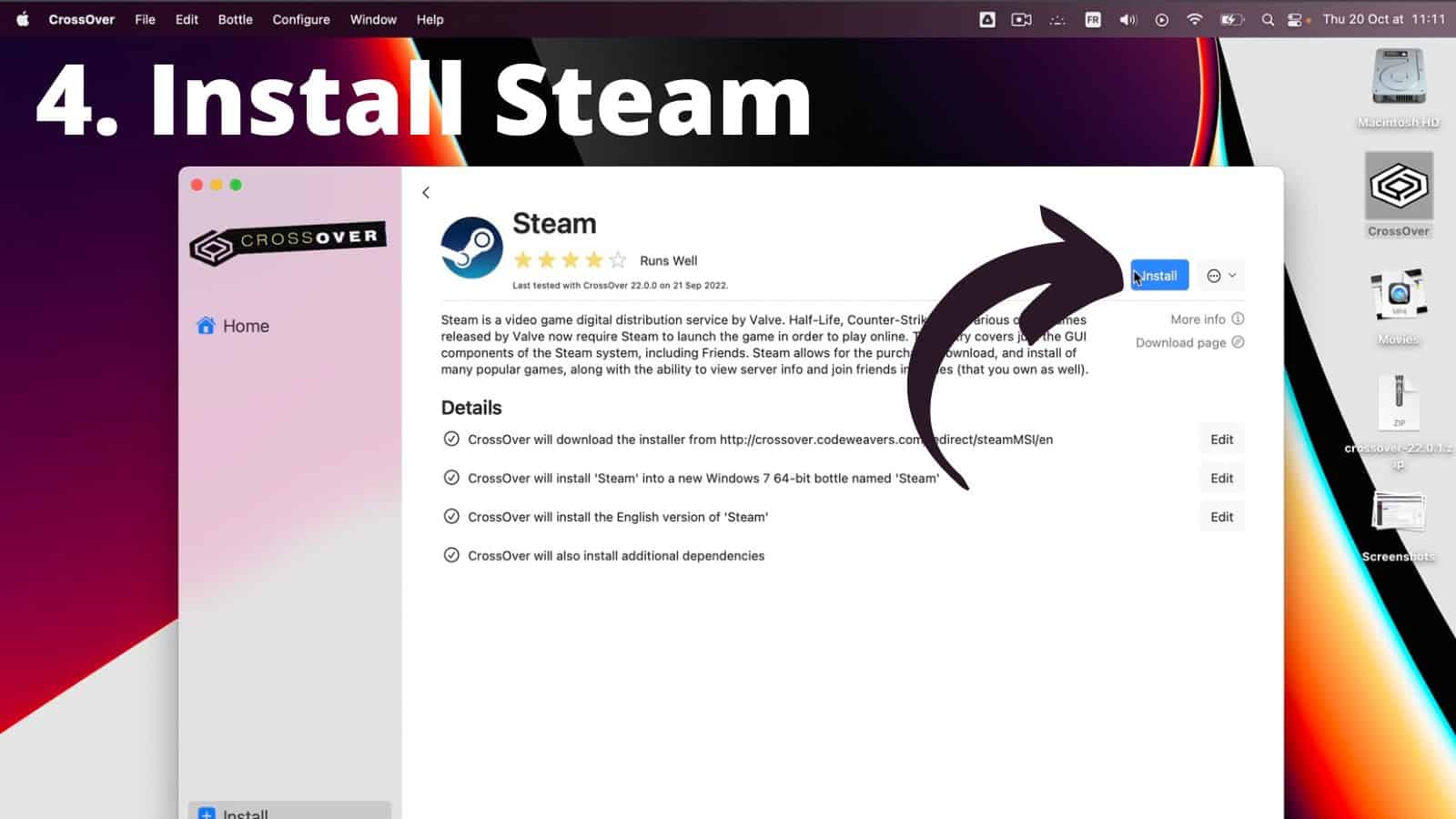
4. Install Steam within CrossOver
This part used to be slightly more complicated, but CrossOver 22 vastly improved the app’s interface, and now the entire process is much more intuitive. Just search for Steam and install it. CrossOver will automatically download any Windows component it may require. You just need to accept whenever a dialog box appears.
Pro tip: CrossOver will create a “bottle” where it will install Steam, its components and future games.

5. Launch Steam
Once Steam is installed within CrossOver, open it by double-clicking its icon. From there, a Windows version of Steam will open, and you’ll be able to buy, download and/or install any game you want, just as if you were running Steam on a Windows machine.

6. Install a Windows game on Steam
In theory, you can download virtually any game you want, but you should know some won’t work, especially those that have very aggressive anti-cheat systems (such as PUBG or Apex Legends).

7. (Bonus) CrossOver optimization
Some games will require you to fiddle around with fixes and updates to run better. To get your bases covered, you should enable “DXVK” in the advanced settings pane within CrossOver. You can find more performance tweaks here.

8. (Bonus #2) Install other game launchers
While Steam is the most popular option out there, CrossOver also works fine with other popular game launchers, including Blizzard’s Battle.net, Epic Games, and more.
What games can you run with CrossOver?
CrossOver can virtually install and run any game you’d like. But in reality, some high-profile games simply won’t work. This is due to incompatibility issues with graphics APIs such as DirectX12, or too-aggressive anti-cheat systems that flag CrossOver as being an intruder.
That said, the situation is improving fast. With each CrossOver update, more and more compatibility issues are fixed and more Windows games become available for Mac. In fact, even DirectX12 is finally receiving support.
More importantly, many games run great today. You can check our CrossOver games list for a list of great Windows games running beautifully on macOS thanks to CrossOver.
Bottom line: Should you use it?
I used to recommend readers not to use CrossOver simply because it was too messy for most. It wasn’t particularly intuitive to install and setup and the vast majority of games required some hack or fix to fully function. Plus, Bootcamp was free and offered better compatibility and performance.
But now that BootCamp is no longer usable on Apple Silicon Macs, I was forced to look into other alternatives, including CrossOver. And CrossOver blew my mind. It can run some Windows games so well, it almost feels too good to be true. Every few months, new updates solve countless compatibility issues. Plus, the actual process of installing CrossOver and then installing and playing games has become so effortless, I can now recommend it to anyone, including non-tech-savvy friends.
Bottom line: If you have a bunch of Windows games you’d like to be able to run on macOS, there’s no reason not to give CrossOver’s 14-day-trial a chance.
Frequently asked questions
Is CrossOver safe on Mac?
CrossOver is absolutely safe to run and install on a Mac. It comes from an established and serious company that now knows what it’s doing. Plus, CrossOver won’t affect your Mac’s core features or functionalities.
Is CrossOver on Mac free?
Unlike Wine, which is an open-source platform that is 100% free, CrossOver is a premium app that costs $75 for a full year of support. As mentioned before, CrossOver does offer a Full-feature trial version.
Is CrossOver or Parallel better?
This is a question that comes up a lot. The two apps are very different from each other, and they both have weaknesses and strengths. If you’re a gamer and want the absolute best possible performance out of your games, then CrossOver might be better for you.
You can download CrossOver for Mac from Codeweavers.

Why did you say that crossover is free when it clearly isn’t?
I never said it’s free. I said there is a free trial.
I think Erin is talking about your comparison table (Method / Cost / Windows required? etc.)were is written “free” for Crossover
That’s because he’s a shill
goat
It’s not clear what exactly happens when you click “Install” in the Steam app… does the game get installed as a new bottle? To launch the game after it is installed, do you use Steam or do you use the bottle for the game itself? The blog post as written currently is not very clear on this